monday.com Basics: Everything You Need to Know to Get Started the Right Way
Better systems. Happier teams. Learn the building blocks of monday.com so you can build workflows, dashboards, and automations that actually work.
What monday.com Actually Is
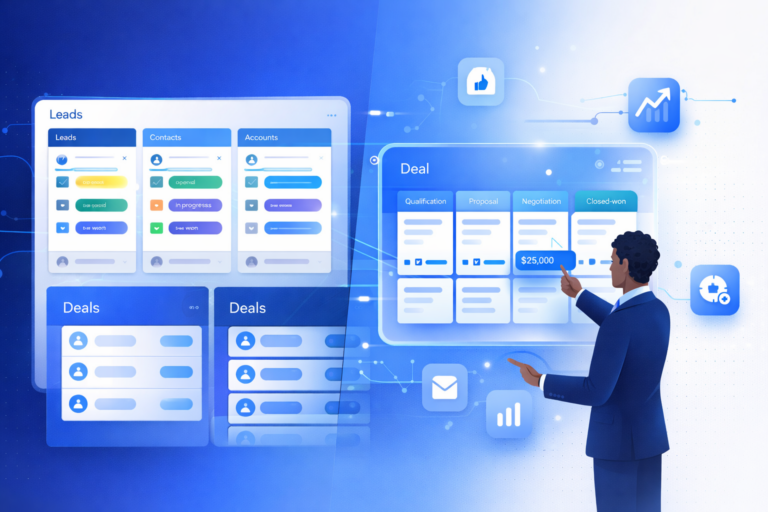
monday.com is a Work OS: a flexible, no-code platform that enables teams to organize and track work in one central place. You can build custom boards for project management, task tracking, sales pipelines, marketing calendars, HR workflows, and nearly any other structured process your organization runs.
The key word is “flexible.” monday.com is not a rigid tool that forces you into a specific way of working. It provides the building blocks, and you design how they fit together for your team. That flexibility is what makes it powerful, but it is also why getting the structure right from the start matters so much. A well-architected monday.com environment feels effortless. A poorly structured one creates more confusion than it solves.
The Building Blocks: How monday.com Is Organized
Before you create your first board, it helps to understand how monday.com is structured. Think of it as a hierarchy: each level contains and organizes the level below it.
The monday.com Hierarchy
Workspace
Top-level container for a department or function. Example: “Marketing” or “Operations”Folder
Groups related boards within a workspace. Example: “Campaigns” folder inside MarketingBoard
Where actual work happens. A customizable table for a specific process. Example: “Social Media Calendar”Group
Color-coded sections inside a board. Organize items by phase, period, or status. Example: “To Do,” “In Progress,” “Done”Item
A single row on a board. Represents a task, client, deliverable, or lead. The core unit of work.Subitem
Nested details under a parent item. Useful for subtasks, but avoid overusing them to keep boards clean.Understanding the Building Blocks in Depth
Each building block serves a specific purpose. Understanding what they do and how to use them well is the difference between a monday.com environment that helps your team and one that confuses them.
Boards
Where all the work livesBoards are the heart of monday.com. Each board is a customizable table designed around a specific process: a project, a pipeline, a workflow, or an inventory. monday.com offers three board types, each serving a different purpose.
Groups
Color-coded sections that organize itemsGroups are the colored sections within a board that categorize items into meaningful collections. They provide visual structure and help teams quickly scan where things stand. Common grouping strategies include project phases, time periods, departments, priority levels, or status stages.
Items and Subitems
The core units of workItems are the individual rows on your board. Each item represents one unit of work: a task, a client, a deliverable, a lead, a request. Subitems are nested details under a parent item, useful for breaking complex items into smaller steps. However, subitems have some limitations in monday.com (they are not included in all dashboard widgets and automation triggers), so use them intentionally.
Columns
The data fields that define what you trackColumns define what information you track for each item. They are the vertical structure of your board, and choosing the right column types is one of the most important architectural decisions you will make. Every column should serve a purpose: if you would not put the data on a dashboard or use it in an automation, question whether it belongs on the board.
Status
Color-coded progress indicator
People
Assign ownership to team members
Date
Deadlines, start dates, milestones
Text
Notes, descriptions, free-form input
Numbers
Budgets, quantities, scores
Files
Attach documents, images, links
Formula
Calculated values from other columns
Mirror
Pull data from connected boards
Dropdown
Predefined selection options
Views: See the Same Data in Different Ways
Views let you look at the same board data through different lenses. The underlying data does not change, but the way it is presented does. This means different team members can see the same information in whatever format is most useful for their role.
Table
Standard grid layout. The default view for most boards.
Kanban
Card-based stages. Great for visual workflow tracking.
Calendar
Date-based layout for scheduling and deadlines.
Chart
Data visualization. Bar, line, and pie charts from board data.
Gantt
Timeline with dependencies. For project scheduling and resource planning.
Automations: Let the Platform Do the Repetitive Work
Automations follow a simple pattern: when something happens (the trigger), the system performs an action automatically. They reduce manual work, ensure consistency, and prevent tasks from falling through the cracks. Start with simple, high-impact automations and add complexity gradually.
Important: Automations amplify whatever exists in your system. If your board structure is clean, automations multiply efficiency. If your board structure is messy, automations multiply chaos. Get the structure right first, then automate.
Dashboards: The Big Picture From Real Data
Dashboards pull data from one or more boards into a single visual interface. They provide the high-level overview that managers and leadership need without requiring them to open individual boards. Dashboards use widgets to display different types of data: number summaries, charts, calendars, timelines, and workload distributions.
The critical thing to understand about dashboards is that they are only as good as the data they pull from. If your boards have inconsistent statuses, missing dates, or unassigned items, your dashboard will reflect that messiness. Clean board architecture is the prerequisite for trustworthy dashboards.
Best Practices for Getting Started the Right Way
The difference between teams that love monday.com and teams that abandon it usually comes down to how they set it up in the first place. These practices will save you from the most common mistakes new users make.
Start Simple
Begin with only the columns you actually need. You can always add more later, but removing columns that people have already started using is disruptive.
Name Things Clearly
Establish naming conventions from day one. Board names, group names, and status labels should be consistent and self-explanatory. Your future self will thank you.
Organize Into Folders
Group related boards into folders within workspaces. As your workspace grows, this structure becomes essential for navigating without getting lost.
Use @Mentions
Keep communication inside monday.com by using @mentions in item updates. This creates a searchable record and keeps context attached to the work it belongs to.
Update Statuses Daily
A board is only useful if the data is current. Build the habit of updating statuses at the start or end of each day. If statuses are stale, dashboards and automations become meaningless.
Test Automations Early
Start with one or two simple automations to get comfortable with the logic. A “when status changes, notify someone” automation takes 30 seconds to build and demonstrates immediate value.
Review and Clean Regularly
Schedule monthly reviews to archive old items, clean up unused boards, and check that automations are still working. Systems decay when nobody maintains them.
Consider Expert Help
A well-architected setup from the beginning saves months of rework later. If your workflows are complex or cross-departmental, working with a certified partner like FlowFam ensures the foundation is built right.
monday.com Setup Checklist for New Users
Work through this checklist to set up your monday.com environment with clean architecture from the start.
- Decided which department or function gets the first workspace
- Created folders to organize boards by category or process
- Built the first board around one core workflow
- Defined groups that match meaningful stages or categories
- Added only the columns that are essential to track and report on
- Established naming conventions for boards, groups, and statuses
- Assigned a People column so every item has a clear owner
- Set up at least one basic automation (status notification or due date reminder)
- Explored different views (Table, Kanban, Calendar) to find what works for the team
- Created a simple dashboard pulling from the first board
- Invited team members and walked them through the structure
- Scheduled a monthly review to clean up and refine the workspace
Frequently Asked Questions
Ready to Build monday.com the Right Way From Day One?
FlowFam helps teams design monday.com environments with clean architecture, smart automations, and dashboards that leadership actually trusts. Let’s talk about your workflows.
Book a Discovery Call