monday.com Automation Use Cases for HR Teams: 10 Recipes That Actually Work
Stop doing manually what monday.com can handle automatically. Here are the exact automation recipes your HR team should be running today.
Most HR teams use monday.com as a prettier spreadsheet. They track employees, log requests, and update statuses by hand – which defeats the entire point of the platform. The real leverage comes from automation. In this guide, we walk through the monday.com automation use cases HR teams are actually running, with the exact recipe structure for each so you can build them yourself.
We work with HR teams every week through our monday.com for HR practice, and the same bottlenecks come up every single time: manual task assignment after a new hire is added, PTO requests stuck waiting for someone to notice, and offboarding steps that fall through because no one triggered the checklist. Every one of those is solvable. And in most cases, one well-built automation is all it takes.
🎯 What Makes HR Automation Different in monday.com
monday.com’s automation engine works on a simple model: trigger plus optional condition plus action. When X happens, and only if Y is true, do Z. Most teams get this in theory. The harder part is knowing which workflows to automate first and how to structure the conditions so automations fire at the right time.
HR workflows have a few quirks that make them more sensitive than standard project management automations. They involve cross-department handoffs (IT, Payroll, Legal, Facilities), sensitive employee data, and a mix of recurring tasks and one-off events. Getting the conditions right matters more here. You do not want an offboarding automation firing on the wrong item.
⚙️ The 10 monday.com Automation Use Cases for HR Teams
These monday.com automation use cases for HR teams are ordered by impact. Start at the top – these save the most time with the least setup complexity.
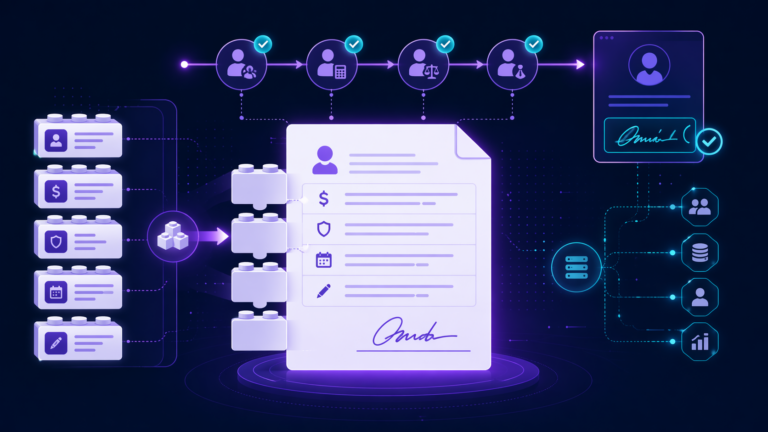
When a new hire item is created, the system should automatically assign onboarding tasks to IT, HR, and the hiring manager. Nobody should have to remember who handles what.
Pair this with a second recipe that moves the item to “In Progress” and notifies all three owners. For the full board structure, see our guide on monday.com employee onboarding setup.
PTO requests submitted as monday.com items can route automatically to the right manager for approval, send a confirmation to the employee when approved, and log the time off in a shared team view.
Hiring managers should never be caught off guard when a candidate moves stages. When a candidate advances to “Interview Scheduled” or “Offer Sent,” the right people should hear about it immediately.
The recruiting board structure is covered in full in our post on building a monday.com hiring pipeline.
When an employee’s status flips to “Departing,” the system should automatically generate checklist items for IT, Payroll, Facilities, and HR – all at once, without anyone having to kick it off.
Date-based automations are a natural fit for review cycles. Set a “Review Due Date” column and alert managers 14 days out – then flip overdue reviews automatically.
Date columns with automated alerts turn your compliance tracker into a passive monitoring system. No manual checking required.
When a department head submits a headcount request, it should route to Finance and HR leadership automatically – and notify Talent Acquisition the moment it’s approved.
When a start date is set, automatically create an IT equipment request so the laptop is ordered before day one.
The 30, 60, and 90-day check-ins are the most frequently missed onboarding milestone. A date-based automation tied to the hire date takes this off the manager’s plate entirely.
Duplicate for 60 and 90 days with progressively more detailed prompts.
When a department or role column changes, notify IT, Payroll, and the new manager simultaneously – instead of a flurry of Slack messages after the fact.
🚀 Want These Set Up for Your Team?
We design and implement monday.com HR automation systems for teams of all sizes. Most clients are running their first automations within the first week.
Book a Free Discovery Call🔥 When Native Automations Are Not Enough
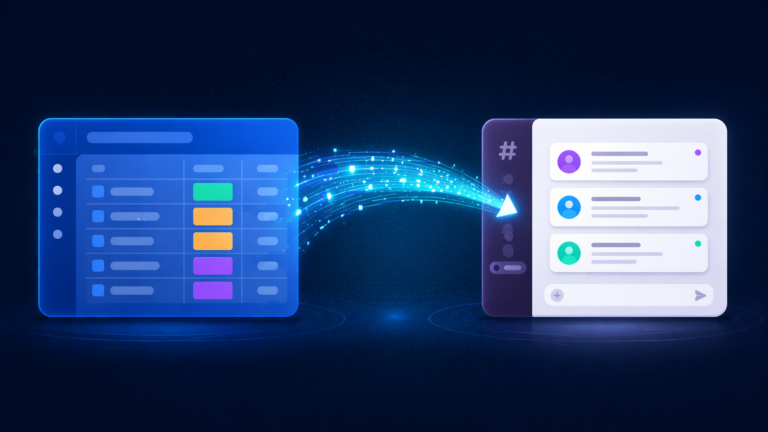
monday.com’s built-in automation handles same-system logic well. But the moment your workflow needs to span multiple tools – pushing data to your HRIS, syncing Slack channels, or sending formatted email sequences – you will hit limits quickly.
That’s where Make.com comes in. Make connects monday.com to virtually any external app and supports conditional branching, loops, and error handling that native recipes can’t do. For HR teams, Make.com scenarios can watch for a new hire item and simultaneously create accounts in Google Workspace, Slack, and your HRIS; detect a termination and trigger offboarding in monday.com while revoking SSO access; and send personalized onboarding email sequences based on monday.com field values.
The rule we give every client: use native automations for anything inside monday.com. Switch to Make.com the moment a workflow needs to touch a second system. For a full breakdown, see our comparison of monday.com automation vs Make.com for HR workflows.
🚫 Common Mistakes HR Teams Make with monday.com Automations
We see the same patterns every time we audit an HR team’s monday.com setup. These are the mistakes that cause the most pain.
⚠️ Skipping “Only If” Conditions
Automations without conditions fire on every item across every group. Always add at least one condition to narrow when an automation fires.
⚠️ Building Automations Before the Board is Stable
If your column names and status values are still changing, your automations break silently. Lock the board structure first, then build automations on top of it.
⚠️ Automating a Broken Process
Automating a flawed process just produces wrong results faster. Walk through the manual version end-to-end first, confirm it works, then automate it.
⚠️ Not Using the Automation Activity Log
monday.com logs every automation execution under Activity Log in the Automations Center. Most teams don’t know it exists until something breaks.
If your automations appear set up correctly but aren’t firing, the most common root causes are covered in our post on monday.com automation not triggering.
❓ Frequently Asked Questions
🎯 Ready to Automate Your HR Workflows?
Our team has helped HR departments turn their monday.com boards into fully automated systems – from onboarding to offboarding and everything in between. Let’s talk about what your team needs.
Schedule Your Free Discovery Call