ICIMS interview feedback forms are iForms that ICIMS Applicant Tracking sends to interviewers after an interview. Set up well, they get completed in minutes, they gate the next workflow step, and they give your team a real record of why a candidate moved forward. Set up loosely, they sit in a to-do list while the actual decision happens in a Slack thread.
The difference is configuration, not effort. This guide walks through how we build interview feedback in ICIMS as a certified implementation partner: what goes on the form, how to launch it from the workflow, how to require it before a status change, how to let hiring managers answer from Microsoft Teams, and how to report on the results. It is written for TA operations leads and ICIMS system administrators who want to get more from their ICIMS investment.
What do ICIMS interview feedback forms actually do?
In ICIMS, an interview feedback form is a specific kind of iForm. A recruiter (or a workflow rule) requests it for a candidate on a job, the interviewer receives the request, completes the form, and the submitted response attaches to that candidate’s record on that job. ICIMS documents the whole loop in its Community articles on creating and managing interview feedback forms, requesting and reviewing feedback, and responding to feedback requests (a Community login is required).
Three things make this more than a survey. First, the form can show the interviewer candidate and job details on the same screen. Second, the request can be tied to a workflow status, so it fires at the right moment without a recruiter remembering to send it. Third, the submitted form becomes a condition other parts of ICIMS can check, which is what lets you require feedback before anyone advances the candidate.
Picture this: a hiring manager finishes a panel interview at 2:30, opens Teams, and sees a card asking for a recommendation and two ratings. She taps it, types one sentence, and is done by 2:33. The recruiter sees a submitted form on the candidate’s record and moves them to the next step. Nobody sent a reminder. That is the target state.
Why is hiring manager feedback worth configuring properly?
Because hiring manager review is where time to hire goes to wait. In its own hiring manager rollout guidance, ICIMS has estimated that nearly 40 percent of a candidate’s time to hire is spent in hiring manager review. Feedback is the biggest single chunk of that review, and it is the part your configuration can shorten.
Recruiter emails “any thoughts?” after every interview
Feedback arrives as one-line replies, or not at all
Candidates advance before anyone wrote anything down
No record to point to when a decision gets questioned
The request launches when the candidate reaches the interview status
A two-minute form with a required recommendation
The next status will not open until the form is submitted
Every decision has a timestamped record on the candidate
There is a fairness angle too. Structured feedback captured the same way for every candidate is easier to defend, easier to compare, and much easier to audit than a pile of email opinions. ICIMS gives you the tools for that structure. The configuration decides whether you use them.
Which iForm profile type should an interview feedback form use?
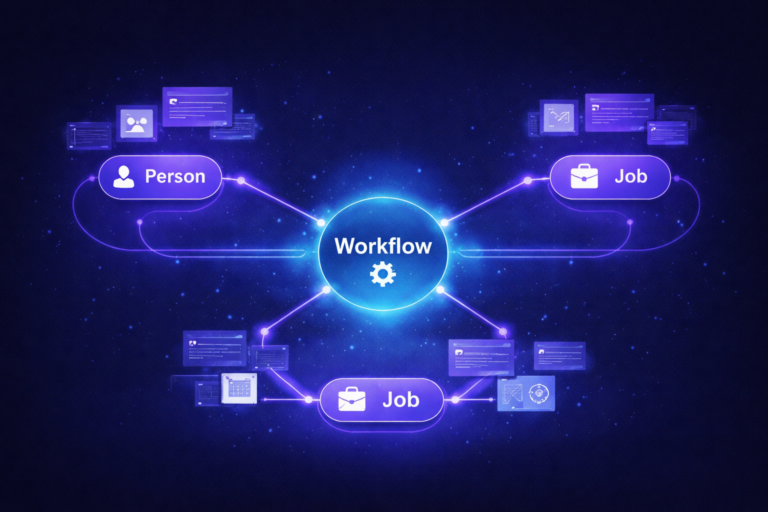
Recruiting Workflow. Every iForm in ICIMS is tied to a profile type, and the profile type controls which data the form can see. A Person profile form only sees candidate data. A Job profile form only sees requisition data. A Recruiting Workflow form sees both, which is exactly what an interviewer needs: the candidate’s name and resume next to the job title and hiring manager.
If you are new to how those objects fit together, our plain-English guide to the ICIMS data structure explains Person, Job, and Workflow profiles and why a field built on one cannot be read by another.
How do you design an ICIMS interview feedback form people actually finish?
Short. Opinionated. The same for everyone. Here is the design brief we hand to teams before anyone opens the iForm builder.
Five questions or fewer. Most of them single-click. One free-text box for the “why.”
Hire, Do Not Hire, or Hire for a Different Role. No “Maybe.” A required choice surfaces hesitation you need to talk about.
One core form for every job. Add a small role-specific section only where a job family truly needs it.
A form that works for most mid-market teams looks like this: two or three competency ratings on a consistent scale, one question on role fit, one required recommendation, one comment box. That is it. Every extra question costs you completion rate, and completion rate is the whole game.
How do you set up interview feedback in ICIMS, step by step?
Here is the order we follow on implementations and audits. Do them in sequence; step five depends on step four.
Want a second set of eyes on your interview workflow?
We review the form, the workflow profile, the gates, and the hiring manager experience together, then hand you a short list of changes that move completion rate.
Book a Free ICIMS Strategy Call →Where can interviewers complete ICIMS interview feedback forms?
The best form in the world does nothing if the interviewer has to hunt for it. ICIMS gives you a few places to surface the request, and the right answer is usually “all of them.”
The hiring manager dashboard. Pending requests appear for the interviewer when they log in. If your dashboard is cluttered, feedback requests get lost in it. We wrote a full guide to ICIMS hiring manager dashboard setup that covers trimming the layout so the to-do items are the first thing a manager sees.
Email. The request notification lands in the interviewer’s inbox with a link to the form. Keep the notification template short, and make sure the subject line names the candidate and the job so it is easy to find later.
Microsoft Teams. ICIMS offers an integration for Microsoft Teams that brings interview feedback into the tool many hiring teams already live in. Interviewers can complete feedback cards inside Teams, and the responses feed into ICIMS Applicant Tracking. ICIMS positions this as a way to improve response rates and speed up decisions, and in our experience it is the single biggest lever for teams whose managers avoid logging in. Setup is documented in the ICIMS Community article on integrating Microsoft Teams and configuring interview feedback.
How do you report on interview feedback in ICIMS?
Two reports matter, and they need to be planned at build time, not after six months of submissions.
Completion and turnaround. For every interview status reached, was a feedback form submitted, and how long did it take? This is the report that tells you which hiring managers need a nudge and which stages are quietly adding days to time to hire. It is built from the form’s submission records against the workflow status history.
Decision quality. How do recommendations and ratings line up with who was hired, and later with who stayed? This one needs the recommendation and key ratings to exist as reportable fields, not only as answers on a form. Responses on a Recruiting Workflow form live on that submitted form. If you want the recommendation in a list view, a dashboard, or a cross-candidate comparison, map it to a field on the Person or Workflow profile as part of the build.
ICIMS reporting delivers real pipeline visibility for leadership once the underlying fields exist and the dashboards are dialed in to the metrics your team runs on. Interview feedback is one of the most useful inputs to those dashboards, and one of the most often skipped.
What mistakes show up most often in interview feedback configurations?
When we run an ICIMS system audit, the interview feedback setup is one of the first things we look at, because it tells us a lot about how the rest of the workflow was built. The same handful of patterns come up.
The form exists but nothing requests it. The iForm was built during implementation, and recruiters were told to “send it after interviews.” Some do. Most don’t. Tie it to the status (step four) and the problem goes away.
The request fires but nothing requires it. Without the entrance criterion (step five), a submitted form is optional in practice, no matter what the process doc says.
The form is a performance review. Fourteen competencies, three essay boxes, and a signature line. Interviewers open it once, close it, and reply to the recruiter’s email instead. Cut it to the core.
One form per job family, none of them maintained. Six variants that drifted apart over two years, so no two departments’ feedback can be compared. Start with one core form.
Nobody trained the hiring managers. The request shows up, the manager has never seen the dashboard, and they go back to email. A short, role-specific session fixes this faster than any configuration change. That is exactly what our ICIMS training for hiring managers is built for: reviewing candidates, completing interview feedback, and approving requisitions without frustration.
If a few of these sound familiar, that is normal. Most ICIMS instances we look at have room to optimize here, and the fixes are small. Recruiters and hiring managers adopt ICIMS faster when the configuration matches their day-to-day, and interview feedback is where that shows up first.
Frequently asked questions
A practical next step for tomorrow
Open your Recruiting Workflow Profile and look at the status right after your main interview stage. Does it have an entrance criterion requiring a submitted feedback form? If not, that is your first change. Then open the form itself and count the questions. If you are past five, that is your second.
Out-of-the-box ICIMS implementations are a strong starting point. Teams get more from the platform once workflows like this one are tailored to how they actually hire. If you would like help with that tailoring, our ICIMS consulting team works alongside ICIMS Professional Services as a dedicated extension of your TA team.
Get more from your ICIMS investment.
Book a free strategy call. We will look at your interview workflow together and outline what would move the needle first.
Book a Free ICIMS Strategy Call →