ICIMS Data Structure Explained: A Guide for Non-Technical Teams
Person profiles. Job profiles. Recruiting workflows. If you’ve wondered why ICIMS stores things the way it does, and why it matters, this guide is for you.
Many teams tell us the same thing: they’ve used ICIMS for months, sometimes years, and the data model still feels hard to reason about. A report comes back with fewer rows than expected. An offer letter shows a blank field. A new custom field lands somewhere nobody can find it.
These issues almost always trace back to one gap: the team never got a clear map of how ICIMS organizes its records. This guide is that map. No developer background required.
🎯 Why ICIMS Data Structure Matters
ICIMS is a full talent platform, not only an applicant tracking system. How your data is organized inside it shapes everything downstream: the emails recruiters are prompted to send, the offer letters that pull candidate and job details, and the reports your VP of Talent reviews every Monday.
When a configuration question comes up, the answer usually starts with structure. A report returns zero rows because it searches Person profiles when the data lives on the Recruiting Workflow. An offer letter shows blank fields because the form was built on a profile type that can’t see job data. A list of “active candidates” includes former employees because no one filtered on folder. Tracing symptoms back to the underlying structure is the first step in a FlowFam ICIMS system audit.
You don’t need to become a developer. You need the logic, so you can configure things correctly the first time and diagnose them quickly when something looks off.
🔥 The Three Core Records in ICIMS
Nearly everything in ICIMS applicant tracking revolves around three records. Once you understand how they relate, the rest starts to click.
👤 Person Profile
Every person in your system has a Person profile: candidates, employees, hiring managers, and contacts. It is the master record for that person and follows them no matter how many jobs they apply to.
💼 Job Profile
Every requisition, open or closed, is a Job profile. It holds what you know about the position, such as title, location, hiring manager, and posting details. One Job profile can connect to hundreds of candidates.
🔗 Recruiting Workflow
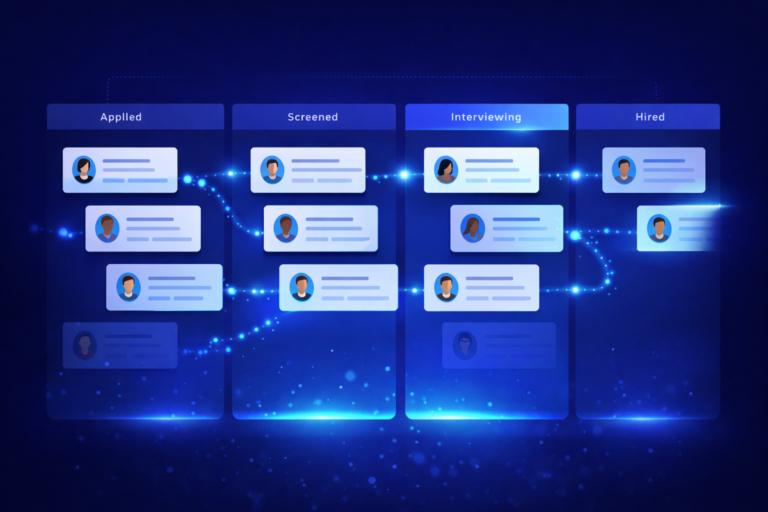
The link between one person and one job. When someone applies, ICIMS creates a Recruiting Workflow record, which is the application itself. Status history and other application-level details live here.
The key idea is the many-to-many relationship. One person can apply to several jobs, creating several Recruiting Workflows. One job can attract hundreds of applicants, each with their own Recruiting Workflow. The Person profile stays the same across all of them.
When you need applicants for a job, or where candidates stand in your process, use a Recruiting Workflow search. It can pull fields from both the Person profile and the Job profile, because the Recruiting Workflow connects the two. A Person search shows the person, but not the application.
📊 Person Types and Folders
Every Person profile carries a folder, which records what kind of person this is and where they currently stand. The folder shows on the profile card, which is color coded by type: Candidate, Contact, Employee, or Hiring Manager.
The main person types you’ll work with:
Candidate
People who apply through your career portals or are added by recruiters. Each candidate should have only one Person profile. Candidate folders also describe status, for example Cand:Active for an active candidate.
Employee
Employees of your organization. Employee details, such as job title and manager, sit on the Employee tab.
Hiring Manager
The managers who take part in your hiring process. Their access to profiles in the system can be limited to what they need.
Contact
Non-candidate contacts your team needs to keep a record of.
Folder is one of the most important filters in reporting. A Candidate search includes everyone who has ever been a candidate, including people who were later hired. To see only people who are candidates today, add a Person Folder filter for your active candidate folder. If imported records land in the wrong folder, they quietly drop out of the searches and reports your team relies on.
A person has one folder at a time, and it is updated as their relationship with your organization changes. When two duplicate profiles are merged, the profile you keep retains its folder.
✅ Tabs and Fields: Where Your Data Actually Lives
Each profile type, whether Person, Job, or Recruiting Workflow, organizes its data into tabs and fields.
Tabs group related information on a profile. A Person profile has tabs such as Contact and Employee, and a Job profile has a Detail tab that holds the hiring manager and location. Tabs are divided into sections, and user admins add custom fields to those sections. Access to profiles, tabs, and fields can be restricted by user group. You’ll see these tab names again whenever you build a search, because columns and filters are organized the same way.
Fields are the individual data points on each tab. The field types you’ll use most:
| Field Type | What It Stores | Common Uses |
|---|---|---|
| Text Field | A short text value, with variants for email addresses and URLs | Job code, cost center, personal email |
| Text Area | Longer blocks of text | Recruiter comments, notes |
| Dropdown (Single-Select) | One option from a configured list | Department, disposition reason, yes or no answers |
| Dropdown (Multi-Select) | Several options from a configured list | Skills, languages, certifications |
| Date | A calendar date | Start date, screening date |
| Number and Decimal | Whole numbers, or numbers with decimals | Years of experience, scores |
| Currency and Salary | An amount with its currency; Salary also records the pay type, such as hourly | Offer amount, pay rate |
| Profile Link | A link to another profile, such as a person, job, or location | Hiring manager on a job, job location |
| File | An uploaded document | Certifications, signed documents |
Custom fields belong to one profile type. That choice decides what the field means: a field on the Person profile holds one value for that person across every job they apply to, while a field on the Recruiting Workflow holds a separate value for each application. Recruiting Workflow searches can report on both, so the question to ask is not “can I report on it?” but “is this about the person, the job, or this specific application?”
🚀 Recruiting Workflow Bins and Statuses
As a candidate moves through your hiring process, their Recruiting Workflow moves through statuses. Statuses are grouped into bins, and the whole structure is configured by a user admin under Admin > System Configuration > Applicant Tracking > Workflow, in Recruiting Workflow Bins and Statuses.
Each status carries settings that shape what happens when a candidate is moved into it:
- Auto-launch actions, which prompt the user to do something, such as send an email, schedule an interview, or add a rejection note
- Auto-launch prompts, which show the user an instruction or reminder
- Entrance criteria, which a candidate must meet before moving into the status
- Flags such as Hired, Rejected, Offer, and Interview, which tell reporting and the rest of the system what the status means
Statuses are added once for the whole system. Many of their options, such as which auto-launch action runs, can be set differently for different user groups, so recruiters and hiring managers can have different experiences of the same workflow.
Status flags matter more than they look. Marking a status as Hired is what makes a move into it count as a hire for time-to-fill reporting, and it reduces the number of openings on the Job profile. If a hire status is missing the Hired flag, your time-to-fill and openings will be off even when recruiters do everything right.
📋 iForms and Profile Type
iForms are electronic forms that collect information inside ICIMS, from employment applications and background check forms to offer letters and, with Onboarding, new hire paperwork. Some come from ICIMS’s standard library, custom forms such as offer letters are built to your organization’s specification, and user admins can create simple acknowledgement forms themselves.
Every iForm is associated with a profile type, and that choice determines which data the form can pull in.
| Profile Type | Can Pull From | Cannot Pull From | Best For |
|---|---|---|---|
| Person Profile | The Person profile only | Jobs or any other profile the person is connected to | Employment applications, background and reference checks |
| Job Profile | The Job profile only | Candidates who applied to the job | Intake meeting notes and other job-level planning |
| Recruiting Workflow | The Recruiting Workflow, Person, and Job profiles | Not applicable: the broadest option | Offer letters, interview evaluation forms |
Two details worth knowing. A Recruiting Workflow form belongs to one person and one job, so a candidate who applies to two roles can complete the same form twice. And prefilled fields populate only the first time a form is completed, so later edits to the profile won’t flow into a form that was already submitted.
The mistake we see most: an offer letter is set up on the Person profile because that’s where the candidate lives, and then it can’t pull the job title or salary range. Offers need both candidate and job data, so they belong on the Recruiting Workflow.
Settle the profile type before a custom form is built. Once a form is live, its logic, testing, and the responses already collected are all tied to that setup, so correcting it later is disruptive. Onboarding works the same way: Onboarding Workflow iForm responses are reported through an Onboarding Workflow search, not a Recruiting Workflow search.
Is Your ICIMS Configured the Way It Should Be?
Structural issues tend to surface only when a report or form doesn’t behave as expected. Our ICIMS architecture reviews find them early, before they cost your team time or create compliance gaps.
Book a Free ICIMS Review⚠️ Common ICIMS Data Structure Mistakes (And How to Avoid Them)
Understanding the data structure is the difference between a system that runs smoothly and one that needs constant cleanup. These are the structural mistakes we see most often.
Building iForms on the Wrong Profile Type
Plan which data a form needs before it is built. If it needs both candidate and job data, it belongs on the Recruiting Workflow.
Skipping Folder Mapping During Imports
When records come in from another system, map each one to the right folder. Otherwise people land where your searches, reports, and dashboards never look.
Putting Application Data on the Person Profile
A “Salary Expectation” field on the Person profile holds one value for that person, so a candidate who applies to two roles overwrites it. If the value can differ by application, put the field on the Recruiting Workflow.
Letting Duplicate Person Profiles Build Up
When the same person applies with a different email address, you can end up with two profiles, which splits their history and skews reporting. Review likely duplicates on a regular schedule and use the merge feature. Merges combine two profiles at a time: the primary profile keeps its values and folder, blank fields are filled from the other profile, and the discarded profile moves to the purge folder.
Setting Status Flags Incorrectly
If a status that means “hired” doesn’t carry the Hired flag, or a rejection status lacks the Rejected flag, reporting and job openings won’t reflect reality. Review flags whenever statuses are added or renamed.
❓ Frequently Asked Questions
Ready to Get Your ICIMS Running the Way It Should?
Whether you’re mid-implementation or several years in, we help teams clean up their ICIMS configuration and build workflows that hold together. Let’s talk.
Book a Free Discovery CallPrefer ongoing, hands-on ownership instead of a one-time fix? See how a certified ICIMS consulting partner keeps your configuration current.