iCIMS Login Groups Setup: A Consultant’s Complete Guide
How license types, permission inheritance, and workflow profiles actually work together — and the five mistakes that quietly break user access for your entire team.
Getting iCIMS login groups setup right is one of the most consequential things a system admin can do, and one of the most frequently misunderstood. When it works, every user sees exactly what they need and nothing they don’t. When it breaks, recruiters can’t access candidates, hiring managers accidentally see everything, and nobody can figure out why a workflow rule isn’t firing. We’ve walked into dozens of iCIMS environments where the root cause of a seemingly complex problem was a misconfigured login group.
This guide covers everything: what login groups actually are, how they differ from user licenses, the step-by-step configuration process, how they interact with workflow profiles, and the five mistakes we see most often in client systems. Whether you’re setting up groups from scratch or auditing an existing configuration, this is the reference you need.
📋 Table of Contents
🔑 What Are iCIMS Login Groups?
A login group in iCIMS is the configuration layer that controls what a user can see and do across the platform. Think of it as the ruleset assigned to every user account that defines their view of the system: which tabs appear in the navigation, which record types they can access, which fields are editable vs. read-only, and whose candidates show up in their search results.
Every user in iCIMS is assigned to exactly one login group. If a user hasn’t been explicitly assigned to a group, they fall to the system default, which is often more permissive than intended. This is one of the most common sources of accidental over-access we see during iCIMS system audits.
Login groups are organized in a parent/child hierarchy. A child group inherits its base settings from the parent, and those settings can be expanded or restricted at the child level. This structure lets you define a few core group templates and then create role-specific variants without configuring every group from scratch.
👤 iCIMS User License Types Explained
Before diving into group configuration, it helps to understand how license types and login groups relate. They are not the same thing, but they work together.
A license type is the billing/seat classification iCIMS uses to count users. It determines what the user is contractually allowed to access at a high level. A login group is the granular configuration that governs what they actually see within those limits. The license type sets the ceiling; the login group configures the floor.
The core iCIMS license types most organizations work with are:
| License Type | Typical Use Case | Req Access | Candidate Access | System Config |
|---|---|---|---|---|
| Full User (Recruiter) | Talent acquisition staff, HR business partners | Full | Full | No |
| System Admin | iCIMS administrators, IT/HRIS team | Full | Full | Full |
| Hiring Manager | Department managers reviewing and approving candidates | Limited | Limited | No |
| View-Only | Executives reviewing pipeline, auditors, HR leadership | View Only | View Only | No |
In practice, most organizations use 4 to 8 login groups to serve their full user population. We typically see groups like: System Admin, Recruiter (Full Access), Recruiter (Own Requisitions Only), Hiring Manager (Standard), Hiring Manager (View Only), and Reporting Viewer. The exact groups depend on your team structure, requisition volume, and compliance requirements.
🛠️ Step-by-Step: How to Set Up a Login Group
The following process reflects how we approach iCIMS login groups setup for new clients and during configuration overhauls. Follow it in order, especially the testing step, which most teams skip and regret.
Navigate to User Group Management
In iCIMS, go to System in the top navigation, then select Users, then User Groups. This is the central admin screen for all login group creation and management. You need System Admin access to reach this area.
Create the New Group
Click Add Group. Give the group a clear, descriptive name that reflects the role and scope (for example: “Recruiter – Corporate” or “Hiring Manager – Read Only”). Vague names like “Group 7” cause long-term confusion. Document your naming convention and stick to it.
Assign a Parent Group
Select the parent group this group will inherit from. If you’re creating a Recruiter variant, the parent should be your base Recruiter group. If no appropriate parent exists yet, configure the parent group first. Starting from the right parent saves significant configuration time.
Configure Object Permissions
For each object type (Job/Requisition, Person/Candidate, Workflow/Application), set the access level: none, view, or edit. Within edit access, you can further specify whether the user can create new records, delete records, or only update existing ones. Be deliberate: every permission you enable is one that could be misused.
Set Candidate Scope
This is one of the highest-stakes settings in the group. You can allow users to see all candidates across the system, candidates only on their assigned requisitions, or candidates within a specific employer/location scope. For most recruiters, “their requisitions only” is the right default. For hiring managers, it should almost always be scoped to their own open positions.
Configure Tab and Menu Access
Disable any platform tabs or menu sections the role does not need. A hiring manager does not need access to the Recruiting Dashboard or System Configuration. Keeping the interface clean reduces errors, shortens onboarding time, and limits the surface area for accidental changes.
Test in a Dedicated Test User Account
Before assigning the group to anyone, create or use a dedicated test user account with this login group. Walk through the full workflow for this role: open a job, view a candidate, advance a workflow status, run a report. Verify that everything works and nothing unexpected is accessible. This step saves hours of troubleshooting later.
Assign to Users and Update Workflow Profiles
Assign the group to users by updating their Person profile in iCIMS under the User account settings. Then check every workflow profile that users in this group will interact with and make sure the group is referenced correctly. This last step is where most admins get tripped up.
🏗️ The Permission Inheritance Model
iCIMS uses a parent/child structure for login groups, but it doesn’t work like a simple one-directional cascade. Understanding how inheritance actually works saves a lot of confusion.
When you create a child group, it inherits the permissions configured in its parent. Any permission enabled in the parent is enabled in the child by default. From there, you can do two things at the child level: restrict permissions (turn off things the parent can do) or expand them (add access the parent doesn’t have). Both directions are supported.
That second point surprises many admins. iCIMS intentionally allows a child group to have more access than its parent. This is useful for specialized roles. For example: a Compliance Recruiter child group might need access to audit-level reporting that the standard Recruiter parent group doesn’t have. Rather than elevating the entire parent group, you add that specific permission only to the child.
For a deeper look at how iCIMS structures its underlying data and permissions, our guide to iCIMS data structure for non-technical teams covers the object model in detail and is a useful companion to this post.
⚙️ Login Groups vs. Workflow Profiles: A Critical Distinction
This is the most commonly misunderstood aspect of iCIMS access configuration, and getting it wrong is the fastest path to user frustration and ticket volume.
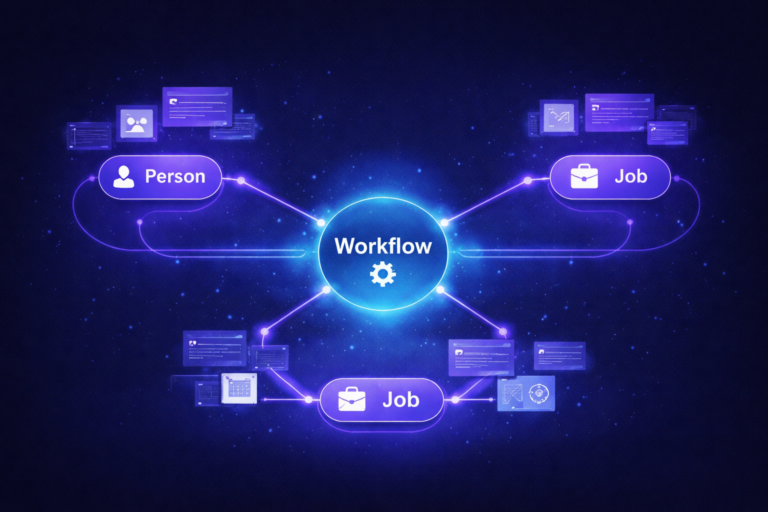
A login group governs platform-wide access. It controls which tabs appear, which record types a user can interact with, and which fields they can see or edit anywhere in the system.
A workflow profile governs access within a specific recruiting workflow. It controls which statuses a user can see on a candidate’s workflow, which statuses they can move a candidate into, and which action buttons appear (like “Schedule Interview” or “Extend Offer”) for a given workflow type.
Here’s the practical consequence: a user can have a login group that grants them view access to all candidate profiles. But if their login group is not referenced in the workflow profile assigned to a specific job type, they may be able to see the candidate’s profile page but have no ability to take action on that candidate’s application. The workflow profile is the gating mechanism for actions within a workflow, and it operates independently of the login group.
🎯 A Real-World Example We See Frequently
A new Hiring Manager login group is created and configured correctly. Users are assigned to it. But nobody updated the Workflow Profile for the “Professional Requisition” job type to include this new group. Now hiring managers can see the job in iCIMS and can see candidate profiles, but when they open a candidate’s application, the disposition buttons don’t appear and they can’t leave feedback. The login group is fine. The workflow profile gap is the issue.
This is why Step 8 of the setup process above (verifying workflow profile references) is non-negotiable.
For more on how workflow rules connect to the rest of your recruiting configuration, our post on iCIMS workflow rules not triggering covers the most common downstream problems in detail. And if you want to see how automations layer on top of workflow configuration, these iCIMS workflow automation examples are a useful companion read.
Need an Expert to Audit Your iCIMS Configuration?
We review login groups, workflow profiles, and permission structures as part of our iCIMS system audit service. Get a clear picture of what’s misconfigured and a prioritized remediation plan.
Book a Free Discovery Call🚫 5 Common Login Group Mistakes (and How to Fix Them)
After auditing dozens of iCIMS environments as part of our iCIMS system audit service, these are the five login group problems we encounter most consistently.
A login group is configured, looks correct in the admin panel, and gets assigned to 40 users the same afternoon. Two days later, tickets start coming in: certain users can’t advance candidates, some can see fields they shouldn’t, others are missing entire tabs. All of it traces back to permissions that looked right in configuration but didn’t behave as expected in context.
✅ Fix: Always create a dedicated test user account that can be assigned to any login group during validation. Walk through the actual workflows for that role before assigning the group to real users. Treat this as mandatory, not optional.This is the most frequent problem we find. A new login group is created and assigned to users, but the relevant workflow profiles are never updated to include the group. Users can see records but can’t take action within workflows. They think iCIMS is broken. It isn’t. The workflow profile just doesn’t know this group exists.
✅ Fix: Every time you create a new login group, build a workflow profile review into your deployment checklist. Identify every workflow profile the users in this group will interact with, and verify the group is included with the correct action permissions for each status.A new group is created and its parent is chosen quickly without checking what the parent actually controls. The new group inherits a much broader set of permissions than intended, including access to system configuration settings or all-candidate visibility that was meant to be restricted. This is how hiring managers end up seeing recruiter-level data.
✅ Fix: Before assigning a parent, review the parent group’s full permission set in the admin panel. Document what the parent allows and confirm the new child group should inherit all of it. If the parent is too permissive, create a leaner intermediate parent first.iCIMS ships with default login groups out of the box. Many organizations assign users to these defaults without reviewing what they actually contain. Default groups are built to be broad and permissive. They are starting points for customization, not production-ready configurations.
✅ Fix: Never assign real users to iCIMS default groups in production. Always clone a default group, rename it, audit its permissions against your actual requirements, and deploy the customized version. Keep the original defaults in place as reference points only.Over time, login groups drift. A permission is added temporarily for a project and never removed. A parent group is updated and child group behavior changes unexpectedly. New features are enabled at the platform level and automatically appear for groups that shouldn’t have them. Six months after initial setup, the groups look nothing like the original design.
✅ Fix: Schedule a quarterly login group review. Compare the current permission set for each group against your original documentation. Check for any child groups with permissions beyond their parent. Verify that deprovisioned users have been moved out of active groups. If you don’t have capacity for this internally, our iCIMS managed services include ongoing configuration health monitoring.If you’ve inherited an iCIMS system and aren’t sure what state your login groups are in, that’s exactly the scenario our iCIMS consulting team handles regularly. A targeted audit can surface permission issues before they create compliance exposure or user productivity problems.
❓ Frequently Asked Questions
Not Sure If Your iCIMS Login Groups Are Configured Correctly?
We’ve fixed login group problems for recruiting teams of every size. A focused review session with our iCIMS certified consultants can surface issues you didn’t know existed and give you a clear remediation path.
Book a Free Discovery Call