Search for ICIMS Connect and you will find two kinds of pages: ICIMS Community articles written for people who already have it, and marketing pages for the newer CRM. Neither answers the question a TA leader or an HRIS manager actually asks, which is what Connect is, whether it is the same thing as the CRM, and how to decide what to do with it.
This explainer answers those questions in plain language. It describes what Connect does, how it differs from ICIMS Candidate Relationship Management, how the pieces fit together, and how to use it well if it is in your instance today. Every product behavior here was verified against the ICIMS Community documentation; the positioning advice is ours, drawn from ICIMS consulting work with mid-market and enterprise TA teams.
What ICIMS Connect is
ICIMS Connect, labeled Connect (Legacy CRM) throughout the ICIMS Community, is the product that lets an organization attract and engage candidates who may not yet be ready to apply for a job but are interested in the employment brand. Candidates come in through a branded, mobile-optimized Connect portal, choose the talent pools that match their interests, and from there the recruiting team uses the platform’s recruitment marketing and CRM capabilities to communicate with them and nurture them toward becoming active applicants.
In practice, Connect is a pipeline builder. The Community describes it as a way to build a pipeline of candidates you can consider when the right job becomes available: people who either expressed interest in your organization or whom your organization may be interested in for potential jobs. You add candidates to any talent pool that matches their skill set and engage them with the built-in event management and email campaign functionality.
ICIMS Connect vs ICIMS CRM vs talent pools
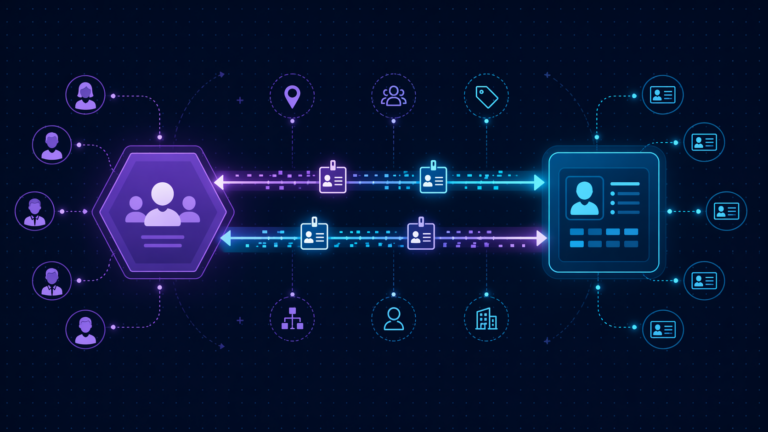
The three terms get used interchangeably and they should not be. Talent pools are the data object. Connect is the legacy product that gives candidates a portal to join those pools and gives recruiters campaigns, events, and searches around them. ICIMS CRM is the newer product built for the same job with a different toolset.
If your team says ‘we have the CRM’ and the menu bar shows Create > Talent Pool with a Connect portal linked from the careers site, you most likely have Connect. If you are not sure which product is in your instance, our ICIMS CRM setup guide walks through what the CRM looks like, and our ICIMS data structure explainer covers how talent pools relate to the Person and Recruiting Workflow objects underneath.
What ICIMS Connect does: the five building blocks
1. Talent pools
Talent pools are the organizing unit. Each is a Talent Pool profile with a Title, a Folder, an External ID, an Owner, and an Overview, and every candidate added to it appears on the profile’s People tab. Folders control visibility: Active pools can be posted to the Connect portal, Inactive pools are available to internal users only (the Community suggests them for evergreen roles instead of a never-closed requisition), and Closed pools can be combined with search locks so the pool is hidden from all user groups while the candidates are retained.
2. The Connect portal
Every organization with Connect has a branded Connect portal, often reached through a Connect with Us link on the careers site. Candidates create a profile (by default the Profile step asks for First Name, Last Name, Phone Number, Current Zip Code, willingness to relocate, Email, and Password) and then select areas of interest, which are simply the talent pools you have posted. User admins configure the Profile step fields under Admin > System Configuration > System > Person on the Portal (Connect) tab, and the Skip link on the resume step can be removed with help from ICIMS Technical Support.
3. Email campaigns and recipient lists
Campaigns are how Connect nurtures. You build a Recipient List, for example using the Talent Pool filter pointed at one pool, then create an email campaign for that list, which can be automated to reach out on a regular schedule. Campaign emails can be sent from the system auto-reply address or from the logged-in user’s email address.
4. Events and Kiosk Mode
Connect includes event management with a Recruiter Review Mode and a Kiosk Mode for career fairs. In Kiosk Mode, first-time attendees reach an Include Resume step with Camera, Google Drive, Dropbox, and Microsoft OneDrive options (the Camera option is mobile-only, and admins can disable the step or individual options in System Configuration). In Recruiter Review Mode, Thumbs Up, Thumbs Down, and Neutral map by default to the Pursue, No Action, and Future Consideration talent pool statuses, and user admins can reconfigure those mappings.
5. Sourcing Workflow and Candidate searches
Reporting on Connect runs through two search types. Sourcing Workflow searches report on candidates as they relate to their chosen talent pools and let you review and update their Connect statuses. Candidate searches report on everyone in the database, and two filters tailor them: # of Associated Sourcing Workflow (how many talent pools a candidate joined) and # of Associated Recruiting Workflow (how many jobs they applied to). Both searches are available from Search > Sourcing Workflow and Search > Person > Candidate.
How to use ICIMS Connect: a working setup in six steps
A Connect instance that works is not complicated, but the steps have to happen in this order, and most underused instances skipped one of them.
Create the talent pool
Post it to the Connect portal
Fill it from every direction
Turn on Candidate Job Recommendations
Review new candidates weekly
Nurture and measure
Five configuration gaps we find in Connect instances
- Pools created but never posted. A talent pool only appears on the portal when its folder is Active and it has been posted through the Posting Center. If no pools are posted to a portal, the Areas of Interest page is blank and candidates simply click Continue. The pipeline fills with ‘general consideration’ candidates nobody searches for.
- Empty Overview fields. If the Overview on a Talent Pool profile is blank, the Show Details button does not display on the Areas of Interest page. Candidates choose pools by title alone, which hurts fit.
- Profile step never tailored. The default Profile fields are generic. Fields are moved at the Global Group level first and then unhidden per portal, which is a two-step process admins often stop halfway through.
- No review cadence. Without the New Talent Pool Candidates search on a dashboard, candidates sit in Needs Review indefinitely, and the Activity Level signal goes unused.
- Source attribution never reconciled. Candidates who join a pool and later apply need to be credited to Connect, or the program looks like it produced nothing. Our ICIMS source tracking setup guide covers how to make that visible.
None of these are product limitations. They are the reasons a Connect instance is labeled underused in an ICIMS system audit, and each one is a configuration afternoon, not a project.
Have Connect and not sure it is earning its keep?
Book a discovery call and we will review your talent pools, portal postings, and campaign setup together, then tell you whether the right move is a configuration fix, a review cadence, or an evaluation of ICIMS CRM.
Book a discovery callKeep ICIMS Connect, or move to ICIMS CRM?
Our position: if Connect is in your instance and your team’s needs are talent pools, a portal, campaigns, and career fair capture, keep using it and fix the five gaps above first. ICIMS supports Connect, and an underused Connect will not be rescued by a migration. The case for the CRM is about what ICIMS is building into it: the drag-and-drop email editor, event management for virtual and on-site events, and matching CRM candidates to any open job. If campaign design speed, virtual events, or job matching are what your recruiters ask for, that is the conversation to have.
Either way, make the decision with your own data: how many candidates joined pools this year, how many were reviewed, how many converted to applicants, and how many hires carry a Connect source. If those numbers are unknown, that is the first thing to fix, and an independent ICIMS evaluation can put them on one page before any product decision is made.
FAQ: ICIMS Connect
Turn Connect into a pipeline your recruiters actually open
A short discovery call is enough to tell you which of the five gaps applies to your instance and what it takes to close them. We will also show you what a weekly review of the pools looks like when it runs itself.
Book a discovery call