ICIMS Background Check Integration Setup: A Consultant’s Complete Guide
Vendor selection, step-by-step configuration, workflow automation, and fixes for the most common problems.
Getting your ICIMS background check integration setup right the first time saves your recruiting team weeks of manual work and keeps candidates moving. When it’s misconfigured, recruiters end up logging into two systems, statuses fall out of sync, and you don’t realize a check was never ordered until a start date is two days away. We’ve configured these integrations across dozens of ICIMS environments, and the same patterns of problems come up over and over. This guide covers everything: how the integration actually works under the hood, how to choose the right vendor, the full setup process, and the five problems we see most often in live environments.
💡 How ICIMS Background Check Integration Actually Works
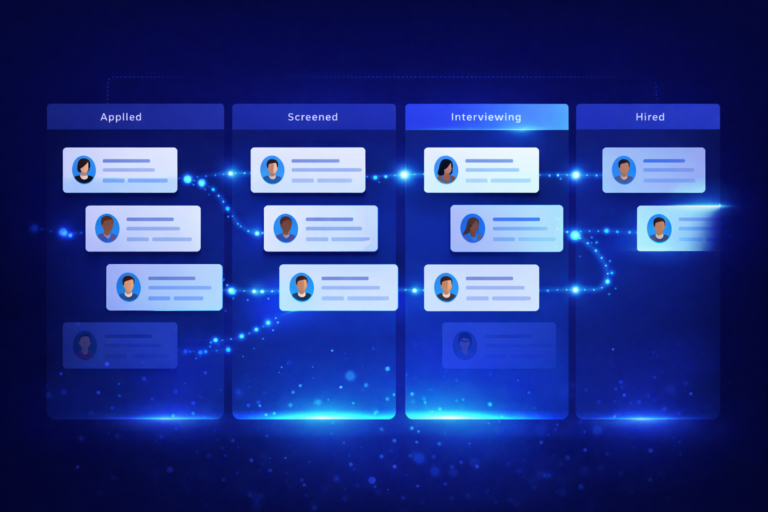
Before you touch any configuration, it helps to understand the mechanics. ICIMS doesn’t do background screening itself. It acts as the coordination point: when a candidate reaches a specific status in your Applicant Workflow, ICIMS fires that candidate’s data to your background check vendor’s system, and the vendor fires results back when the check completes.
The connection happens one of two ways.
Prime Connectors are pre-built integrations certified by ICIMS and available through the ICIMS Marketplace. Vendors like Checkr, HireRight, and Sterling maintain these connectors. When the vendor updates their API, they update the connector, so you don’t have to. Prime Connectors are the right starting point for most organizations because the integration is tested, documented, and doesn’t require custom development.
Custom API integrations use the ICIMS Developer API, specifically the Applicant Workflow Status Update event, to fire candidate data to a vendor system via webhook. This is the option for vendors that don’t have a Prime Connector, or for organizations with unusual data routing requirements. Custom integrations are significantly more work to set up and maintain. If your vendor has a Prime Connector, use it.
🎯 Choosing the Right Vendor for Your ICIMS Environment
The ICIMS Marketplace includes background check integrations from more than a dozen vendors. Three dominate the market for ICIMS customers: Checkr, HireRight, and Sterling (now part of First Advantage). Here’s an honest comparison from our consulting experience.
| Vendor | Best For | Integration Depth | Typical Setup | International? |
|---|---|---|---|---|
| Checkr | High-volume, modern UX | Deep | ~2 weeks | Limited |
| HireRight | Enterprise, global hiring | Deep | 3-4 weeks | Extensive |
| Sterling | Complex, multi-country programs | Deep | 4-6 weeks | Extensive |
| Accurate Background | Mid-market, compliance focus | Standard | 3-4 weeks | Moderate |
| Cisive | Healthcare, financial services | Standard | 3-4 weeks | Moderate |
Our honest take: Checkr is the right call for most mid-market US-focused teams. The integration is clean, the UI is modern, and setup is fast. HireRight is the better fit if you’re hiring across multiple countries or need a vendor with deep enterprise relationship history. Sterling is best when you have genuinely complex screening requirements, think healthcare credentialing or DOT-regulated positions, that justify its longer setup cycle.
🔥 Step-by-Step: Setting Up ICIMS Background Check Integration
Here’s the end-to-end process for a Prime Connector setup. The specific UI steps vary slightly by vendor, but the overall sequence is consistent across all of them.
-
1
Define your trigger status
Decide which Applicant Workflow Status will fire the background check. Most teams use a status like “BGC Ordered,” “Contingent Offer Accepted,” or “Pre-Employment Screening.” Create this status in your ICIMS Workflow Profile if it doesn’t already exist. This decision affects every downstream automation, so get alignment with your TA and compliance teams before you proceed. Get this wrong and you’ll be rebuilding the whole workflow later.
-
2
Open the integration in ICIMS Marketplace
Log into your ICIMS account and navigate to the Marketplace. Search for your vendor’s Prime Connector (for example, “Background Screening solution by Checkr, Inc.”). Click through to the app page and initiate the installation. ICIMS will then prompt you to contact the vendor to complete setup.
-
3
Kick off with your vendor
Once ICIMS has initiated the connection, your background check vendor will schedule a kickoff call. This three-way call involves ICIMS technical support, your vendor’s integration team, and your organization. The goal is to agree on the trigger status, data field mapping, and package configuration. Don’t skip this call or try to configure it unilaterally. The kickoff is where most setup errors get prevented before they happen.
-
4
Map candidate data fields
ICIMS sends a set of candidate data fields to the background check vendor when the trigger fires. At minimum this includes first name, last name, email address, phone number, date of birth, and social security number (encrypted in transit). Your vendor will confirm which ICIMS Person Profile fields they need and how they map on their side. Missing or mis-mapped fields cause orders to fail silently, so verify each field explicitly during the kickoff.
-
5
Configure and sync your screening packages
Work with your vendor to define the specific background check packages you need: Standard, Enhanced, Executive, DOT-regulated, or whatever fits your hiring programs. Packages typically combine criminal history, identity verification, employment verification, education verification, and drug screening in different configurations. Once your vendor sets these up in their system, they sync to ICIMS so recruiters can select the right package per requisition.
-
6
Configure the results return
After a check completes, your vendor fires the results status back to ICIMS. Configure which ICIMS field receives this status. Most teams create a custom ICIMS field on the candidate profile, for example “BGC Status,” that the vendor writes to with values like “Clear,” “Consider,” or “Pending.” This field can then drive further workflow automation or feed into your recruiting dashboard.
-
7
Test end-to-end with a live candidate record
Create a test candidate in ICIMS and move them through to the trigger status. Confirm the check is ordered in your vendor’s system, track it through completion, and verify the result status writes back correctly to the ICIMS field. Don’t sign off on the integration until you’ve seen the full cycle work. Testing just the trigger is not enough.
✅ Automating Background Checks via ICIMS Workflow Rules
Manually moving candidates to the trigger status works, but it’s error-prone. If a recruiter forgets, the check never gets ordered. The better setup uses ICIMS Workflow Rules to move candidates to the trigger status automatically based on conditions you define.
There are two approaches.
Entrance Criteria prevent a candidate from moving forward in the workflow until certain conditions are met. You can configure an Entrance Criterion that requires a consent form or offer acceptance iForm to be completed before the candidate can reach the BGC trigger status. This enforces the right order of operations without relying on recruiter memory. Our guide on ICIMS workflow automation examples covers Entrance Criteria configuration in detail, including the exact Auto-Launch and Prompt structure.
Auto-Launch Actions fire automatically when a candidate enters a status. You can configure an Auto-Launch Action on the trigger status to send a notification to the candidate with consent instructions, fire an internal alert to your TA coordinator, or update another profile field. The background check order itself is handled by the integration trigger, but Auto-Launch Actions handle everything around it.
For teams building out a full ICIMS environment or rebuilding an existing one, our ICIMS consulting services include integration configuration as part of a complete implementation. Teams with an existing setup that needs optimization can work with our ICIMS implementation consultants to audit and redesign your workflow structure without starting from scratch.
🚫 The 5 Most Common ICIMS Background Check Integration Problems
Even with a well-configured integration, things break. Here are the five problems we encounter most often in client environments, and exactly what causes each one.
Background check status isn’t syncing back to ICIMS
The check completes in the vendor’s system but the status field in ICIMS doesn’t update. Most often this is a field mapping issue: the vendor is writing to a field ID that no longer exists or was renamed in ICIMS. Verify with your vendor that the field ID in their system matches the current ICIMS field ID exactly. The second most common cause is a callback authentication failure where the vendor’s webhook can’t authenticate to ICIMS. Reissue the API credentials and have your vendor test the callback endpoint.
Background check is not ordering when the trigger status is applied
The recruiter moves the candidate to the trigger status but no check is initiated in the vendor’s system. This usually means the integration is watching a different status name than the one being used. Compare the exact status name, including capitalization and spacing, configured in the integration against the actual workflow status in ICIMS. A single character difference causes a miss every time. Also confirm the candidate profile has all required data fields populated: a missing SSN, DOB, or email address causes the order to fail silently on the vendor’s end.
Duplicate background check orders being fired
If a candidate’s status cycles through the trigger status more than once, for example moved to BGC, moved back to Interview for a second round, then moved to BGC again, ICIMS may fire the integration trigger each time. Add a condition to your trigger configuration or workflow rule to check whether the BGC Status field already has a value before ordering a new check. Your vendor may also have a deduplication option on their end worth enabling.
Wrong screening package being used for the role
Recruiters are selecting the default package for every order instead of matching the package to the job type. This is a training and UI configuration problem, not a technical one. Add a required package selection field to your BGC initiation iForm in ICIMS, or configure Workflow Rules to auto-select the correct package based on job category or department field. Make the right behavior the easy behavior, and the wrong behavior require extra steps.
Candidate consent email not sending
Background check vendors are required by FCRA to obtain candidate consent before running a check. If the consent email isn’t reaching the candidate, either the email address in ICIMS is missing or malformed, or the vendor’s sending domain is landing in the candidate’s spam folder. Verify the email field on the candidate profile, and ask your vendor to run a test send to confirm deliverability from their domain. Some teams work around deliverability issues by collecting consent as a standalone iForm in the ICIMS application flow before the check is ever ordered.
🎯 Need Help Configuring Your ICIMS Integrations?
We set up ICIMS background check integrations, workflow automation, and full-system configurations for recruiting teams every week. If your integration is broken or you’re starting from scratch, let’s talk.
Book a Free Discovery Call📊 Compliance Considerations to Get Right from Day One
Background checks intersect with employment law in ways that can create real legal exposure if the ICIMS integration isn’t set up thoughtfully.
Adverse action notices. If you decide not to hire someone based on a background check result, the FCRA requires a specific adverse action process: a pre-adverse action notice with a copy of the report, a waiting period (typically five business days), and then a final adverse action notice. Some background check vendors can automate parts of this through the ICIMS integration, but only if the integration is configured to share hiring decision data back to the vendor. Ask your vendor explicitly whether their ICIMS connector supports adverse action workflow automation.
State-specific timing rules. Several US states restrict when in the hiring process you can order a background check. California, New York, and Illinois have “ban the box” laws and related regulations that affect when consent can be collected and when a check can be initiated. If you’re hiring in these states, the placement of your trigger status in the workflow needs to reflect those requirements. Don’t assume your vendor or ICIMS handles state compliance automatically because they don’t.
Consent form placement in ICIMS. The FCRA requires the consent form to be a standalone document, not buried in a broader application or buried within multi-page iForms. Use a dedicated consent iForm in ICIMS and require its completion as an Entrance Criterion before the trigger status is reachable. This creates an auditable, timestamped record on the candidate’s ICIMS profile that you can reference if a candidate ever disputes the process.
❓ Frequently Asked Questions
✅ Ready to Get Your ICIMS Setup Running Smoothly?
From background check integration to workflow automation to full implementations, we configure ICIMS environments that recruiting teams can actually use. Book a free 30-minute discovery call and tell us what’s broken.
Book Your Free Call