monday.com for Recruiting Hiring Pipeline: Build a System That Actually Works
Stop losing candidates in spreadsheets. Here’s how to set up a recruiting pipeline in monday.com that your whole team will actually use.
If your recruiting process still lives in a shared spreadsheet or a cluttered inbox, you already know the pain. Candidates fall through the cracks. Hiring managers ask “where are we on this one?” in every Slack huddle. And nobody can give leadership a real answer on when roles will close. Setting up a monday.com for recruiting hiring pipeline changes all of that – and it doesn’t take months to build. We’ve helped HR teams get up and running in a few days with a setup that’s visual, automatable, and one that people actually open every morning.
📋 Table of Contents
🎯 Why Use monday.com for Recruiting?
Most teams we talk to have tried at least two things before landing here: a full ATS that was too rigid for their process, and a spreadsheet that worked fine until the fifth person started editing it. monday.com sits in a useful middle ground. It’s flexible enough to build exactly the workflow you need, structured enough to enforce process discipline, and visual enough that hiring managers actually check it without being asked.
It’s not the right call if you’re running 500+ hires a year with OFCCP reporting requirements – that’s where a purpose-built ATS earns its cost. But for teams managing anywhere from 10 to 200 annual hires, a well-configured monday.com for recruiting hiring pipeline can cover the full funnel from job intake to offer without a second system.
monday.com recruiting setups work best for teams that want recruiter-owned workflows, real-time hiring manager visibility, and automation without heavy IT involvement. For compliance-heavy or high-volume operations, pair it with a dedicated ATS.
📊 Step 1: Set Up Your Open Roles Board
Before you track candidates, track the roles themselves. This is the piece most teams skip, and it’s exactly why pipelines get messy after the first month. You need one place where every open position lives – with enough context that anyone on the team can see the full recruiting workload at a glance.
Create a board called Open Roles and configure it with these columns:
| Column Name | Column Type | Purpose |
|---|---|---|
| Role Title | Item Name | Name of the position |
| Department | Dropdown | Organize by business unit |
| Hiring Manager | Person | Links to your monday.com user |
| Recruiter | Person | Who owns this search |
| Priority | Status | Critical / High / Normal / On Hold |
| Open Date | Date | When the role was approved to recruit |
| Target Close Date | Date | When you need this role filled |
| Headcount | Number | How many seats to fill |
| Location | Dropdown | Remote / Hybrid / On-site + city |
| Job Description Link | Link | URL to live JD or internal draft doc |
Use Groups to organize by status – Active, On Hold, Closed. This lets you archive completed searches without deleting them, which matters when someone asks “how long did it take us to fill that role last quarter?”
Going straight to candidate tracking without an Open Roles board is the most common setup mistake we see. You end up with no way to report on how many active searches are running, which roles are understaffed on recruiter time, or which ones have been open longest.
🔥 Step 2: Build the Candidate Pipeline Board
This is the core of the monday.com for recruiting hiring pipeline – where candidates live and move through stages. One board, one item per candidate. Use Groups to separate by role or department depending on your volume and how your team works.
The Stage Status Column
The Status column drives everything else: automations, dashboard charts, and stale-candidate alerts. Set up these labels in order:
Application submitted. No recruiter action taken yet.
Recruiter has scheduled or completed an initial screen.
Candidate is in active interview rounds with the hiring team.
Last round before a hiring decision is made.
Verbal or written offer extended to candidate.
Offer accepted. Triggers onboarding handoff.
Candidate removed from active consideration. Keeps history clean.
Essential Candidate Columns
| Column | Type | Why It Matters |
|---|---|---|
| Role | Connect Boards or Dropdown | Links candidate to their open role item |
| Required for automations and outreach | ||
| Application Date | Date | Tracks time-in-stage and time-to-fill |
| Last Status Change | Date (set via automation) | Flags candidates who’ve gone stale |
| Recruiter | Person | Owner of this candidate relationship |
| Source | Dropdown | LinkedIn / Referral / Indeed / Inbound / Agency |
| Interview Score | Rating (1-5 stars) | Structured feedback from the hiring team |
| Resume | File | Attach the PDF directly to the item |
| Notes | Long Text | Running commentary from recruiter and interviews |
The “Connect Boards” column type lets you link each candidate item to its corresponding role on the Open Roles board. This is what makes cross-board reporting possible – you can see candidates per role, and flag a role as filled when the candidate hits Hired status.
📋 Step 3: Create a Candidate Intake Form
The intake form is how new candidates get into your pipeline without any manual data entry. monday.com’s Form view builds this directly on top of your Candidate Pipeline board – every submission creates a new item with all the fields pre-populated from the form responses.
Go to Views – Add View – Form. Map each form question to the matching column. At minimum, collect: full name, email, the role they’re applying for, how they heard about it (source), and a resume file upload. Once live, you get a shareable URL you can embed on a job posting, send via LinkedIn message, or use internally when a recruiter adds a sourced candidate.
We recommend one universal intake form with a dropdown for role selection rather than a separate form per role. It’s easier to maintain, and all submissions land in one board where automations can route them. Only split forms if your roles have fundamentally different intake questions.
⚙️ Step 4: Set Up Stage Automations
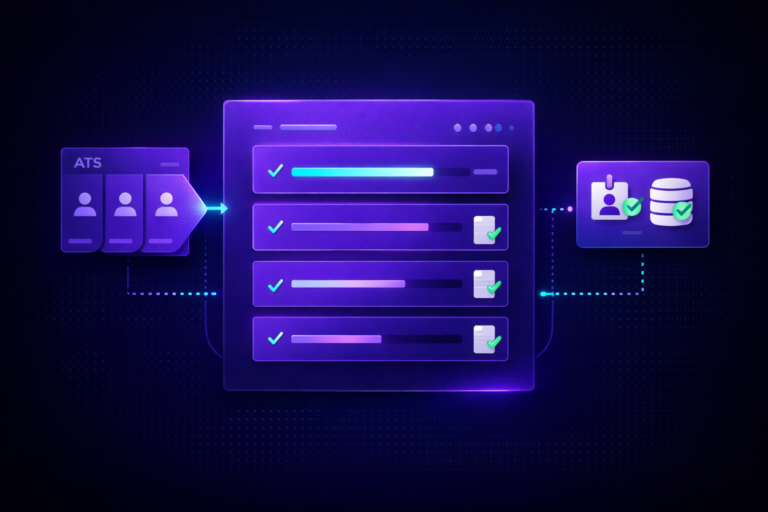
This is where a monday.com for recruiting hiring pipeline stops feeling like a fancy spreadsheet and starts acting like an actual recruiting engine. The right automations cut out the manual update cycle that consumes recruiter time every week – the Slack messages, the status-update requests, the “did you remember to…” conversations.
Here are the five automations we build for every client from day one:
Notify Hiring Manager When Candidate Reaches Interview Stage
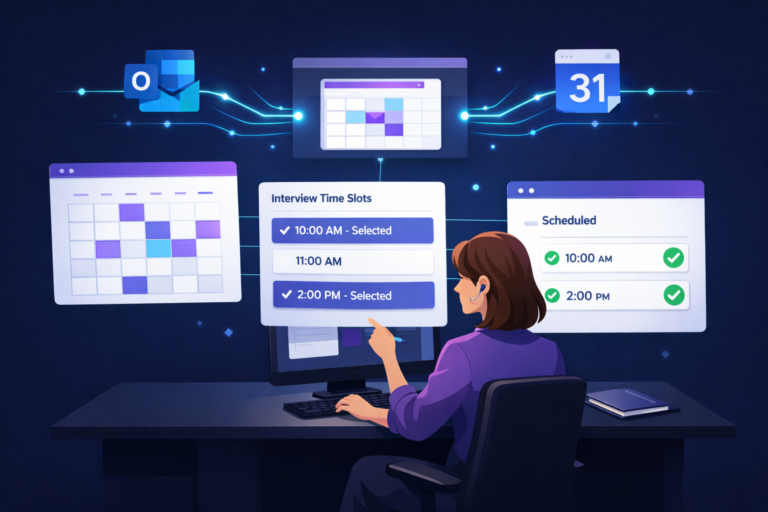
Trigger: Status changes to “Interview” – Action: Notify the person in the Hiring Manager column with the candidate’s name and role. This eliminates the “has [candidate] been scheduled?” message in your hiring manager’s Slack DMs.
Log the Stage Change Date Automatically
Trigger: Status changes to any value – Action: Set the “Last Status Change” date column to today. This one automation powers all your time-in-stage reporting and fuels the stale-candidate alert in step 5.
Alert Recruiter When Candidate Is Not Moving Forward
Trigger: Status changes to “Not Moving Forward” – Action: Send a notification to the Recruiter person column prompting them to send a rejection communication. Don’t automate the rejection email itself unless you have a carefully reviewed template – a generic auto-email does more damage than a short delay.
Trigger Onboarding When a Candidate Is Hired
Trigger: Status changes to “Hired” – Action: Create a new item on your Onboarding board or notify the HR coordinator to kick off the new hire process. This closes the handoff between recruiting and onboarding without a single manual step.
Flag Stale Candidates After 7 Days
Trigger: Last Status Change date is more than 7 days ago AND Status is not “Hired” or “Not Moving Forward” – Action: Notify the assigned Recruiter. This prevents candidates from being accidentally ghosted mid-process – which is both a candidate experience problem and a legal risk in some jurisdictions.
Want This Built for Your Team?
We build monday.com recruiting pipelines for HR teams – full setup, automations, dashboards, and training done in under a week.
Book a Free Discovery Call📊 Step 5: Build Your Recruiting Dashboard
A pipeline without visibility is just a database nobody trusts. The monday.com Dashboard view pulls data from your Candidate Pipeline and Open Roles boards into one reporting surface you can share with leadership and hiring managers – without giving them full board access or the ability to accidentally move things around.
Start with these four widgets:
Add a fifth widget: a Table filtered to show only candidates in the Offer stage. This gives leadership a live offer tracker without exposing the entire pipeline to people who don’t need it.
🚫 Common Mistakes to Avoid
These patterns show up in almost every implementation we inherit or help rebuild. Getting them right from the start saves weeks of cleanup later.
Creating a separate candidate board for every open position is the most common structural mistake. After six months you have 30 boards, no cross-role visibility, and a reporting nightmare. One board with Groups is almost always the right call.
Building 20 automations on day one creates confusion and broken workflows before anyone understands the basics. Start with 3-5 high-value automations, run them for a month, and expand based on actual pain points – not theoretical ones.
Not connecting your Candidate Pipeline board to your Open Roles board means you lose the ability to report candidates per role, mark roles as filled, and track headcount progress. The Connect Boards column is small effort for big reporting payoff.
Without an automation flagging candidates who haven’t moved in 7+ days, it’s easy to lose track of someone mid-process. This is both a poor candidate experience and, depending on your region, a potential compliance issue.
Hiring managers with full board edit access tend to delete items, change statuses mid-flow, or duplicate columns that break automations. Add them as Guests or restrict editing to specific columns. They usually only need to read the pipeline and drop in interview feedback.
❓ Frequently Asked Questions
For many small to mid-size teams, yes. monday.com can handle end-to-end candidate tracking, intake forms, automated stage transitions, and reporting. For high-volume enterprise hiring with compliance requirements, you may want a dedicated ATS alongside monday.com for workflow coordination.
Yes. monday.com allows Guest users who can view and interact with specific boards without counting against your full seat license. This is the right setup for hiring managers who only need to read their department’s pipeline and leave interview notes.
Add a Date column for the role open date and a second Date column for the hire date on your Open Roles board. Create a Formula column that calculates the difference in days. Then add a Numbers widget on your dashboard to average time-to-fill across all closed roles.
monday.com does not have a native direct integration with LinkedIn or Indeed for candidate imports. You can connect via Zapier or Make.com to push applicants from those platforms into your monday.com board automatically.
At minimum: Candidate Name (item name), Role (connect boards or dropdown), Status (pipeline stage), Email, Application Date, Last Status Change date, Recruiter (person), Interview Score (rating), and Notes (long text). Most teams also add a Files column for resumes and a Source dropdown.
We recommend one main Candidate Pipeline board for all active roles, using Groups to organize by department or role. This gives you cross-role pipeline health in one view. Only create separate boards for roles with genuinely different hiring workflows.
monday.com does not auto-deduplicate. Search by email before adding a candidate manually. For higher-volume teams, a Make.com scenario can check for a duplicate email entry before creating a new board item – this is worth building once you’re past about 20 new candidates per week.
When you’re managing compliance-heavy hiring with OFCCP/EEO reporting, running simultaneous hundreds of requisitions, or need features like structured interview scorecards with legal defensibility, a dedicated ATS is the right call. monday.com can still serve as the operational coordination layer on top of it.
Ready to Build Your Recruiting Pipeline?
FlowFam’s monday.com certified team sets up recruiting pipelines that hiring teams actually use – from board structure to automations to dashboards. No generic templates. Built for your process.
Schedule a Free Consultation